
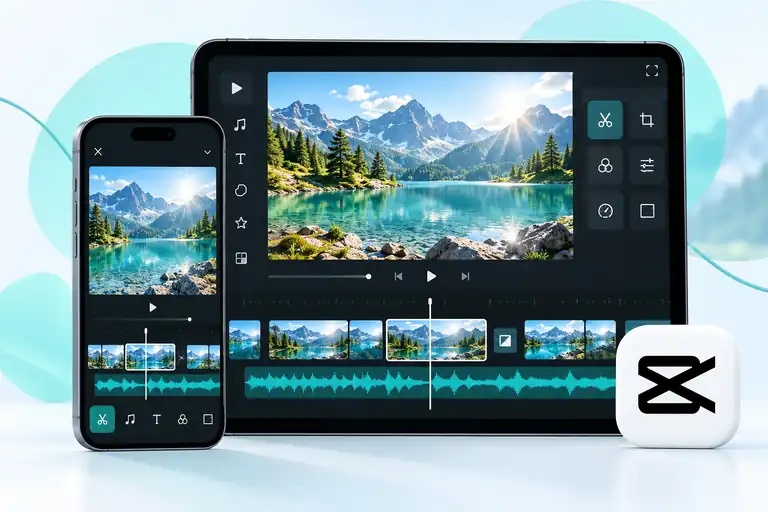
CapCut for iOS helps you edit videos on your iPhone or iPad. You can cut unwanted scenes, join clips, add music, and write text on your videos. It is useful for family memories, travel videos, tutorials, and social media posts. You do not need to learn every tool at once. Start with a few clips and make simple changes. You can explore more creative options. CapCut is available as a free download with in-app purchases. This means you can use free tools, while some features require payment.
Table of Contents
Can You Download CapCut APK on iOS?
You may see people search for “CapCut APK for iOS.” However, an APK is an Android app file. It does not install on an iPhone or iPad. For Apple devices, download the iOS or iPadOS version from the App Store. CapCut also has a version for Mac computers, which use macOS.
Key Features of CapCut for iOS
Simple Video Editing
Trim the start or end of a clip to remove unwanted footage. Split a recording into smaller sections or join several clips together. You can also crop the picture and change the order of your scenes. These basic tools help you build a video that is easier to follow.
Filters, Effects, and Text
Filters can give your video a warmer, brighter, or softer look. Effects and transitions add movement between scenes. You can also add titles, short messages, and text animations. Choose a clear style that suits your video. A few well-chosen effects often work better than using too many.
Music and Sound Effects
Add background music, sound effects, or your own voice recording. These can help set the mood or explain what is happening.
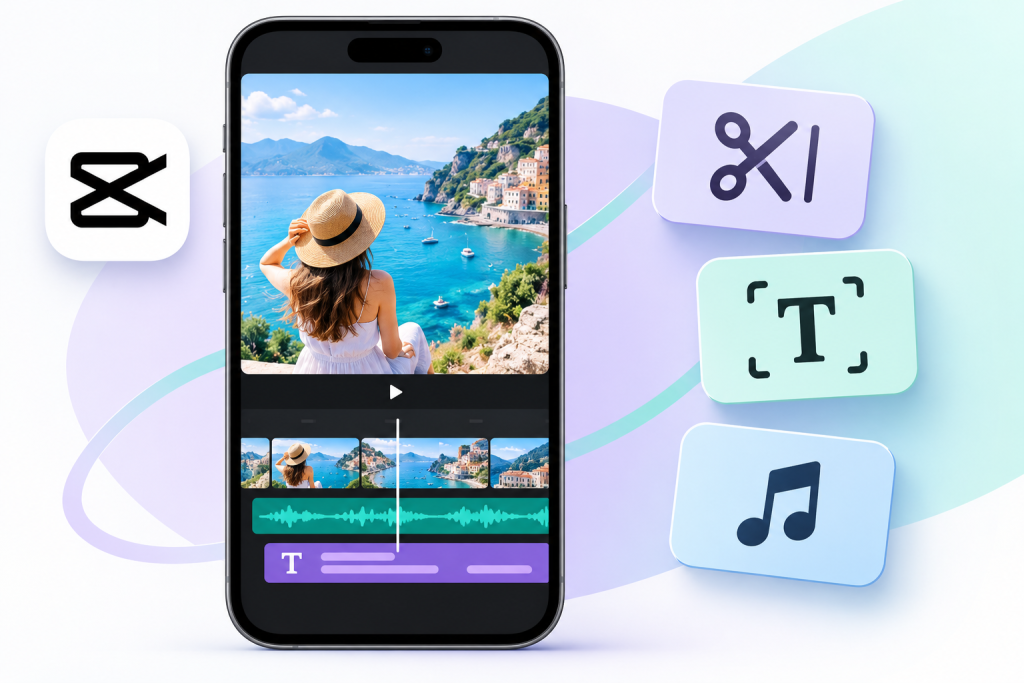
Keep music low when someone is speaking. Also, check that you have permission to use a track on the platform where you plan to post.
AI Editing Tools
CapCut includes tools such as automatic captions, text-to-speech, and background removal. These can reduce some of the work involved in editing. Always check the results before saving. Automatic captions may miss names or words, so you may need to correct them.
HD and 4K Export
CapCut supports high-resolution export options, including 4K on supported setups. The settings available to you can depend on your device, app version, and plan. Some export options require Pro. Watermark rules can also vary, so check the export screen before saving.
Is CapCut Available on iPhone and iPad?
Yes. CapCut has an App Store listing for iPhone and iPad. Availability may differ by country or region. Using CapCut can help you prepare your videos, but it does not guarantee more views. Your topic, storytelling, sound, and picture quality also matter.
CapCut for iOS Requirements
Before downloading, check that you have:
- A compatible iPhone or iPad.
- The software version required by the current App Store listing.
- Enough free space for the app, project files, and saved videos.
- An internet connection for downloading the app and using online features.
Open the app’s Compatibility section in the App Store to check the latest requirements. These can change when the app is updated.
How to Download CapCut on iPhone or iPad
Follow these simple steps:
- Open the App Store.
- Tap Search and enter CapCut.
- Find CapCut: Photo & Video Editor.
- Check that the developer is Bytedance Pte. Ltd.
- Tap Get or the download symbol.
- Confirm the download if Apple asks.
- Open CapCut when installation is complete.
You can find the app through its Official App Store listing.
How to Start Your First Video
- Open CapCut and choose New Project. Select a few photos or videos and add them to the timeline.
- Remove unwanted parts and arrange the clips in order. Then add a short title, music, or captions if needed.
- Watch the full video before exporting. Check the spelling, sound level, and clip order. Button names may differ slightly between versions.
CapCut for iOS vs Android
Both versions offer many of the same editing tools. However, their layouts, features, and paid options may differ. Neither version is always faster or better. Performance depends on the device, available storage, and the size of your project. A long video with many effects needs more resources than a short, simple edit.
Is CapCut for iOS Free?
CapCut is free to download, but everything inside the app is not free. Some effects, templates, AI tools, and export options require a subscription or other payment. Check for paid labels before adding items to your project. This can help you avoid a payment prompt when you are ready to export.
Pros and Cons of CapCut for iOS
Pros
- Useful tools for everyday video editing.
- Options for text, music, effects, and captions.
- Templates that can save editing time.
- Convenient editing on an iPhone or iPad.
- Free tools to help you get started.
Cons
- Some features require payment.
- Large projects can take up considerable storage.
- Online tools and downloadable assets need internet access.
- Older devices may struggle with demanding edits
- Automatic captions and AI results need checking.
Conclusion
- CapCut is a useful option for editing videos on your iPhone or iPad.
- You can begin with simple cuts, text, and music, then try more tools as you learn.
- Download it from the App Store and start with a small project.
- Check the free and paid options before editing, and review your video before sharing it.